The Future of Web Dev
The Future of Web Dev
Customizable Lightbox & Gallery Component for Astro – Pandabox
Add a fast, customizable image lightbox & gallery to your Astro site with Pandabox. It uses modern CSS and supports touch gestures.
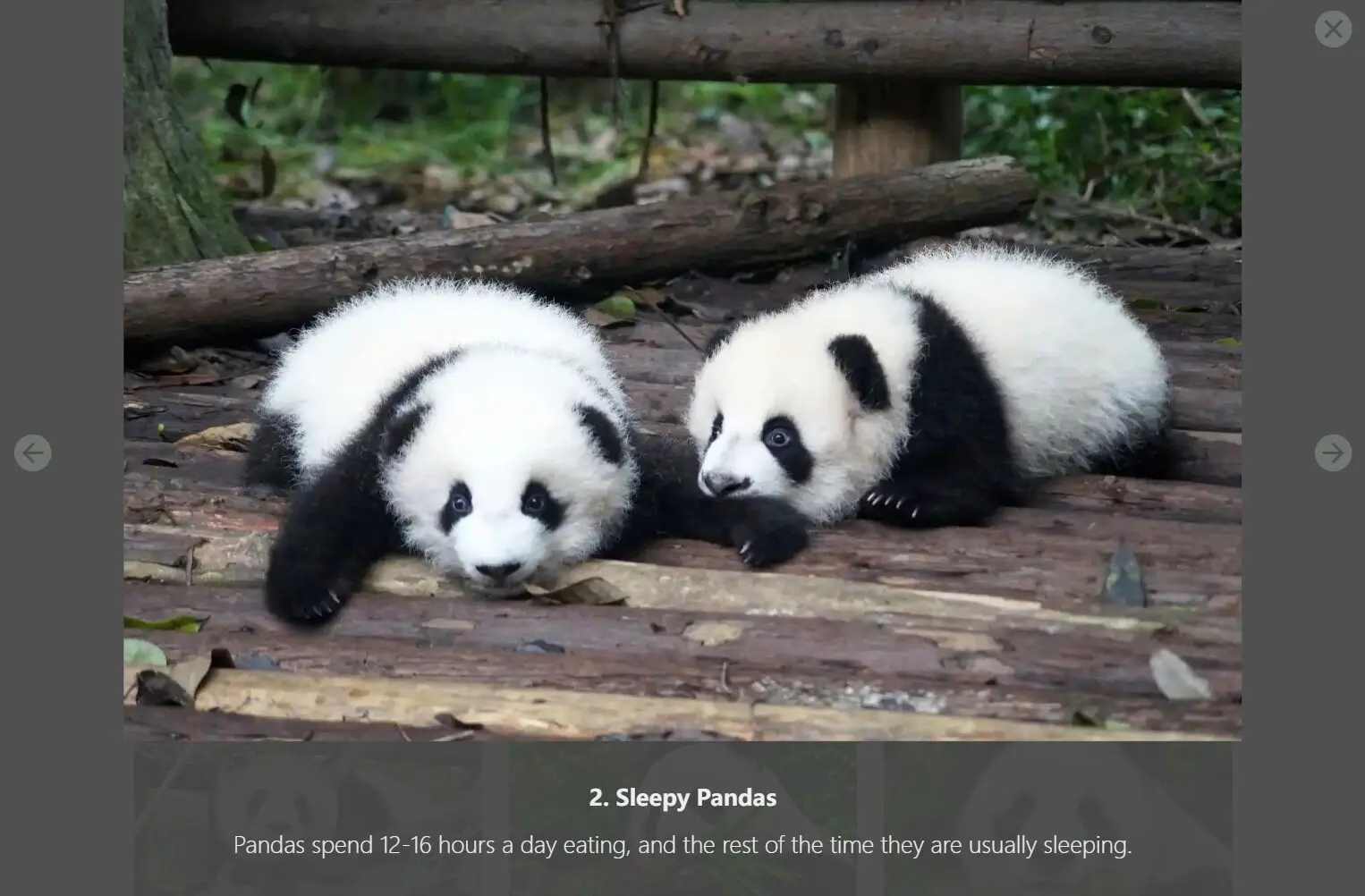
Pandabox is a responsive, modern image lightbox and gallery lightbox component for Astro.
This component integrates with Astro’s native Image component to handle image optimization automatically.
It is built with modern CSS for styling and allows further customization of transitions through CSS custom properties.
You can control the easing and timing of animations and choose between a “fade” or “slide-in” effect for image transitions.
The component also supports touch-enabled swiping for navigating through slides on mobile devices.
Features
📁 Content Collections support for structured gallery management.
🖼️ Automatic image optimization using Astro’s Image component.
📱 Touch-enabled swiping for mobile devices.
⚡ Zero external dependencies – pure CSS and JavaScript.
⏱️ Configurable timing and easing through CSS custom properties.
🔧 Modern CSS implementation with custom properties.
📝 Support for image titles, descriptions, and alt text.
🎯 Semantic HTML structure for accessibility.
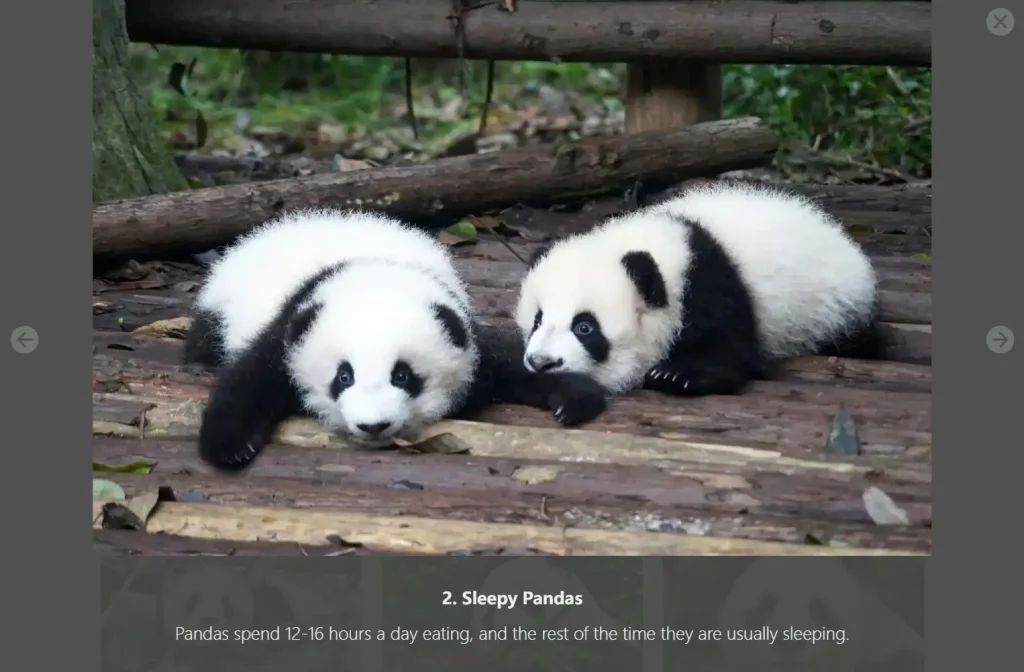
Preview
Use Cases
- Portfolio websites showcasing photography or design work.
- E-commerce product pages requiring interactive image galleries.
- Blog posts with visual content collections needing lightbox functionality.
- Documentation sites displaying interface screenshots with captions.
How to Use It:
1. Place the Pandabox.astro file into your src/components folder.
2. Configure Astro’s content collections to handle the gallery data. If you do not have a content collections configuration file, create a config.ts file inside a src/content directory. Then add the following collection definition to it.
import { defineCollection, z } from 'astro:content';
const galleries = defineCollection({
  type: 'data',
  schema: ({ image }) =>
    z.object({
      images: z.array(
        z.object({
          src: image(),
          alt: z.string(),
          title: z.string().optional(),
          description: z.string().optional(),
        }),
      ),
    }),
});
export const collections = {
  galleries: galleries,
};
This setup defines a galleries collection that expects JSON files containing an array of image objects.
3. Create a new folder galleries inside your src/content directory. Inside this folder, create JSON files to define your galleries. The name of each JSON file will serve as its galleryid.
Each JSON file should contain an images array. Each object in the array represents an image with its source, alt text, and optional title and description. You can use an alias like @images for your image folder path.
{
  "images": [
    {
      "src": "1.jpg",
      "alt": "Image 1",
      "title": "Image 1",
      "description": "Description 1"
    },
    {
      "src": "2.jpg",
      "alt": "Image 2",
      "title": "Image 2",
      "description": "Description 2"
    },
    // ...
  ]
}
4. To display a gallery on a page, import the Pandabox.astro component and add it to your template. Use the galleryid prop to specify which gallery to load and the transitionType prop to set the desired animation.
<Pandabox galleryid="panda" transitionType="fade" />
5. You can customize the lightbox’s appearance and behavior by overriding the CSS custom properties in your stylesheet.
.lightbox-dialog {
  --duration-zoom-in: 1.2s;
  --duration-background-transition: 0.5s;
  --duration-slide-transition: 0.5s;
  --duration-close-transition: 0.75s;
  --caption-height: 5lh;
  --ease-zoom: cubic-bezier(0.5, -0.5, 0.1, 1.5);
  --ease-slide-transition: cubic-bezier(0.9, 0, 0.1, 1);
}
Related Resources
- Astro Content Collections Documentation – Official guide for managing structured content in Astro projects
- Astro Image Component – Learn about Astro’s built-in image optimization features
- 10 Best Lightbox Gallery Plugins In JavaScript & CSS
FAQs
Q: Can I use Pandabox with Astro versions below 5.0?
A: No, Pandabox requires Astro 5+ due to its dependency on the latest Content Collections API and loader system.
Q: How do I add new images to an existing gallery?
A: Edit the corresponding JSON file in src/content/galleries/ and add new image objects to the images array. Astro will automatically rebuild your site with the updated gallery.
Q: How do I change the transition animation for the lightbox?
A: You can set the transitionType prop on the <Pandabox /> component to either "fade" or "slide-in".
Q: Can I adjust the speed of the animations?
A: Yes, you can modify the animation timings by setting the CSS custom properties like --duration-zoom-in, --duration-slide-transition, and --duration-close-transition in your own CSS file.
Q: How do I create multiple galleries on the same page?
A: Include multiple Pandabox components with different galleryid values. Each component instance will create a separate, independent gallery.

