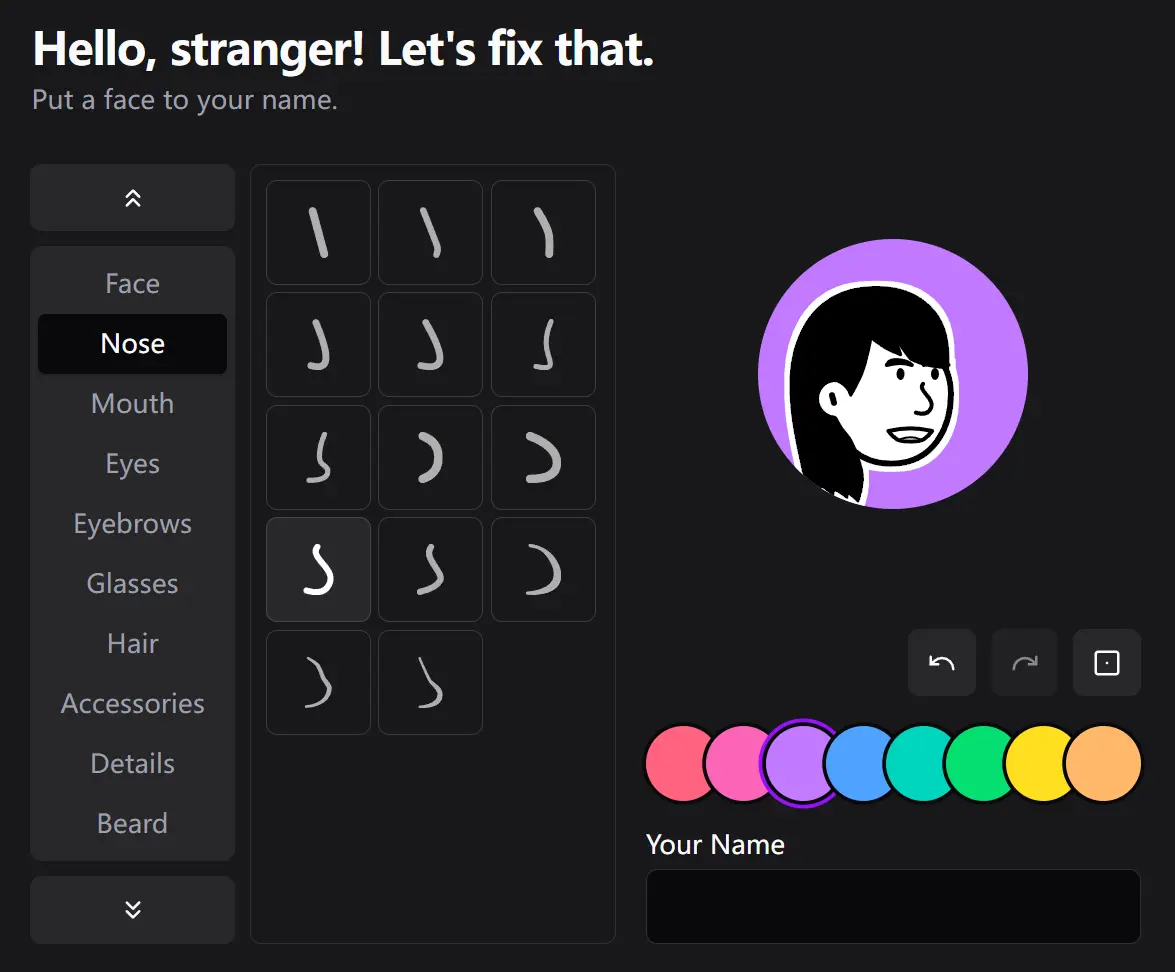
Notion Avatar Svelte is a Svelte 5 component library that creates customizable Notion-style avatar editors. It uses Svelte 5 Runes for reactive state management and Runed for history tracking.
This library integrates with shadcn-svelte for accessible UI components and supports TypeScript. You can export avatar configurations as JSON data and import them later.
The component maintains avatar state through a context-based store system. This makes avatar data available throughout your application.
Features
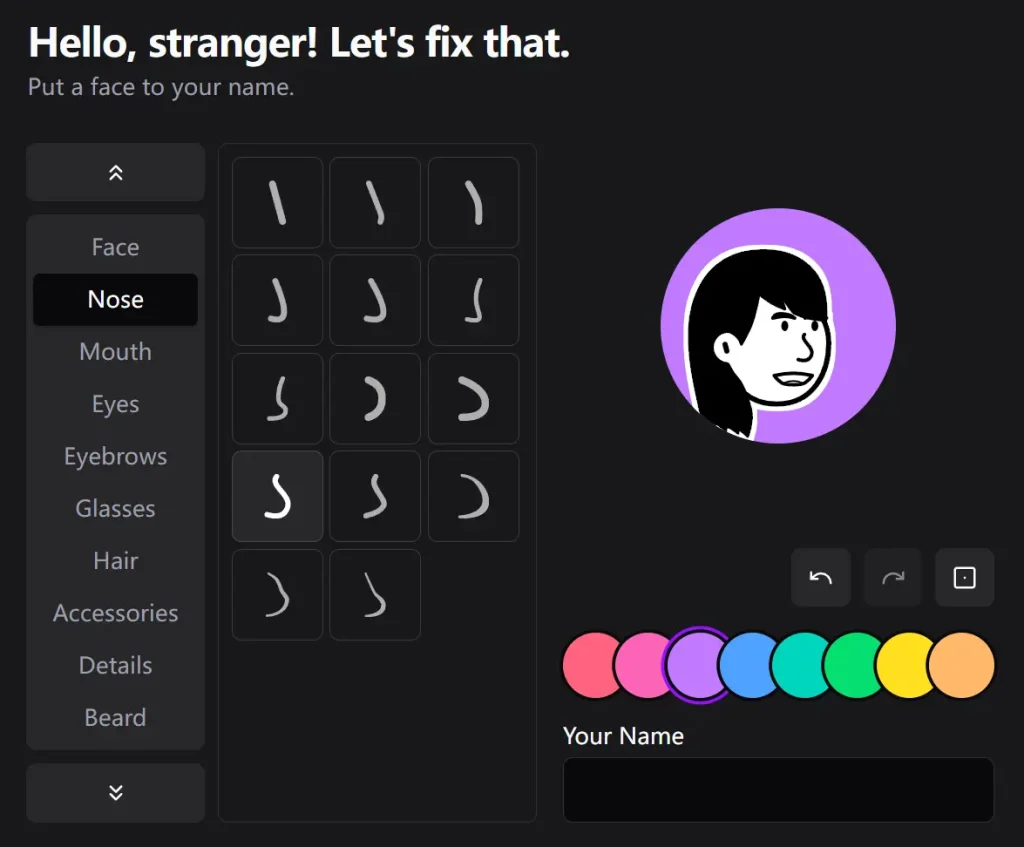
🎨 Notion-Style Avatar Editor: Full-featured avatar customization interface matching Notion’s design patterns.
⏮️ History Tracking: Undo and redo support powered by Runed’s StateHistory for better user experience.
🔄 JSON Import/Export: Save avatar configurations as JSON and load them back for persistent storage.
⚡ Svelte 5 Runes: Built on the latest Svelte 5 state management primitives for optimal performance.
♿ Accessible Components: Uses shadcn-svelte component library for WCAG-compliant UI elements.
🎭 Customizable Parts: Add your own SVG assets to expand avatar customization options.
Preview
Use Cases
- User Profile Systems: Drop the avatar editor into registration flows or profile settings pages to let users create personalized avatars without requiring photo uploads.
- Team Directory Applications: Build internal team directories where members can customize their avatars to match your company’s visual style and branding guidelines.
- Collaborative Workspace Tools: Add avatar customization to project management or collaboration platforms where visual identity helps team members recognize each other quickly.
- Educational Platforms: Create student profile systems where learners can design their own avatars for a more engaging and personalized learning environment.
How to Use It
Quick Start with jsrepo
1. Install the jsrepo CLI globally if you have not already.
bun add -g jsrepo2. Initialize shadcn-svelte in your project. This step is only necessary if you have not set it up before.
bunx shadcn-svelte@next init3. Add the avatar editor component to your project.
jsrepo add @stickerdaniel/notion-avatar-svelte/ui/avatar-editor4. To make the avatar’s state available across your application, set up the avatarContext in your root layout file. This involves creating a new instance of the AvatarStoreClass.
<!-- src/routes/+layout.svelte -->
<script lang="ts">
   import '../app.css';
   import { avatarContext } from '$lib/components/ui/avatar-editor/avatarContext';
   import { AvatarStoreClass } from '$lib/components/ui/avatar-editor/AvatarStore.svelte';
   let { children } = $props();
   avatarContext.set(new AvatarStoreClass());
</script>
{@render children()}
5. You can now render the editor anywhere in your application.
<script lang="ts">
   import AvatarCreator from '$lib/components/ui/avatar-editor/avatar-editor.svelte';
</script>
<AvatarCreator />
6. To display the created avatar or its configuration data, access the context in any child component.
<script lang="ts">
   import * as Avatar from '$lib/components/ui/avatar';
   import { avatarContext } from '$lib/components/ui/avatar-editor/avatarContext';
   const avatar = avatarContext.get();
</script>
<Avatar.Root>
   <Avatar.Image src={avatar.svgDataUrl} alt="User Avatar" />
   <Avatar.Fallback>Avatar</Avatar.Fallback>
</Avatar.Root>
<pre>{JSON.stringify(JSON.parse(avatar.configJSON), null, 2)}</pre>
Manual Installation
1. Clone the repository from GitHub.
git clone https://github.com/stickerdaniel/notion-avatar-svelte
cd notion-avatar-svelte
2. Install the project dependencies.
bun install3. Start the development server. Open your browser to http://localhost:5173 to see the avatar editor in action. The development server includes hot module replacement for instant feedback during development.
bun run devCustomizing Themes
The component library uses Tailwind CSS variables for theming. Visit the shadcn-svelte themes page at https://next.shadcn-svelte.com/themes to browse preset themes or create custom color palettes.
Copy your selected theme’s CSS variables and paste them into src/app.css. The avatar editor automatically applies your theme to all UI elements.
Adding Custom Avatar Parts
Extend the avatar editor with your own SVG assets. The component looks for SVG files in a specific directory structure.
Add new part SVGs to:
src/lib/components/ui/avatar-editor/assets/parts/[category]/[category]-[index].svgAdd corresponding preview images to:
src/lib/components/ui/avatar-editor/assets/preview/[category]/[index].svgUpdate the category configuration in src/lib/components/ui/avatar-editor/types.ts by modifying the DEFAULT_CATEGORIES array. Add your new category with the appropriate file paths and display names.
The editor automatically loads and displays your custom parts in the UI. Users can then select from both the default parts and your additions.
Related Resources
- Svelte 5 Documentation: Official Svelte 5 documentation covering Runes, component patterns, and the new reactivity system.
- shadcn-svelte: Component library providing the UI building blocks used in the avatar editor.
- Runed: Utility library for Svelte 5 that provides StateHistory and other state management helpers.
- Tailwind CSS: Utility-first CSS framework used for styling the avatar editor components.
FAQs
Q: How do I save avatar configurations to a database?
A: Access avatar.configJSON from the context to get a JSON string representation of the current avatar. Store this string in your database and load it back by parsing the JSON and setting the avatar state on component mount.
Q: Can I customize the available avatar parts and colors?
A: Yes. Add new SVG files to the parts and preview directories, then update the DEFAULT_CATEGORIES array in the types file. The editor automatically includes your custom parts in the selection interface.

