The Future of Web Dev
The Future of Web Dev
Build Rich Text Editors with Tiptap, Next.js, and Supabase
Build a rich text editor with Tiptap, Next.js, and Supabase. Includes image uploads, content storage, and markdown support for web apps.
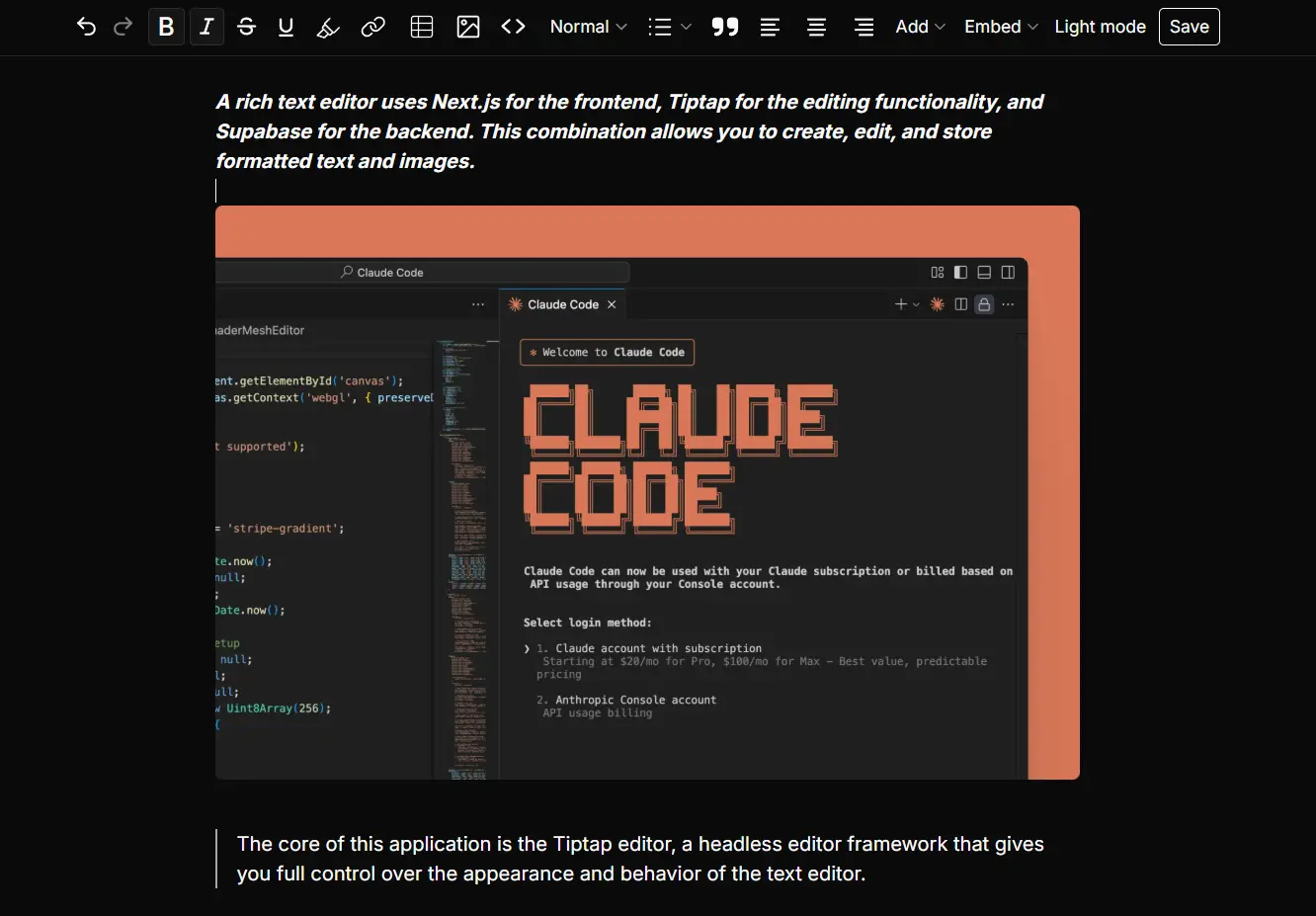
A rich text editor uses Next.js for the frontend, Tiptap for the editing functionality, and Supabase for the backend. This combination allows you to create, edit, and store formatted text and images.
The core of this application is the Tiptap editor, a headless editor framework that gives you full control over the appearance and behavior of the text editor.
Supabase handles data persistence, storing both the textual content in its database and image uploads in its storage solution.
Features
📝 Complete rich text editing capabilities with text formatting, lists, headings, and block quotes.
🖼️ Direct image upload functionality that stores files in Supabase Storage buckets.
💾 JSON-based content storage in Supabase database tables for reliable data persistence.
⌨️ Built-in keyboard shortcuts for common editing actions like bold, italic, and list creation.
📋 Markdown syntax support that converts markdown shortcuts into formatted content automatically.
🎬 Media embedding support for YouTube, Vimeo, SoundCloud, and Spotify content.
🔄 Content synchronization between the editor and Supabase database in real-time.
📱 Responsive design that adapts to different screen sizes and devices.
Use Cases
- Blogging Platform: You can build a simple and efficient blogging platform where users can write and publish articles with formatted text and images.
- Note-Taking App: The editor can be the central component of a note-taking application, allowing users to create and organize their notes with rich formatting.
- Content Management System (CMS): You can use this project as the basis for a lightweight CMS for a personal or small business website.
- Documentation Site: It can be adapted to create a documentation site where you can write and maintain technical documents.
- Collaborative Writing Tool: With further development, this application could be extended to support real-time collaborative editing for team projects.
How to Use It
1. Clone the repo from GitHub and install the necessary dependencies:
git clone https://github.com/your-username/tiptap-nextjs-supabase.git
cd tiptap-nextjs-supabase
yarn install2. Set up your Supabase backend.
Create a table for storing the editor’s content:
CREATE TABLE public.documents (
  id bigint GENERATED ALWAYS AS IDENTITY NOT NULL,
  created_at timestamp with time zone NOT NULL DEFAULT now(),
  content json,
  CONSTRAINT documents_pkey PRIMARY KEY (id)
);
Configure Row Level Security (RLS) policies to allow data to be saved to this table.
To handle image uploads, create a new storage bucket named uploads in your Supabase project. Then, run the following SQL scripts to set the necessary access policies:
-- Allow public uploads to the 'uploads' bucket
CREATE POLICY "Public can upload to uploads"
ON storage.objects
FOR INSERT
TO public
WITH CHECK (bucket_id = 'uploads');
-- Allow public read access to files in the 'uploads' bucket
CREATE POLICY "Public can read uploads"
ON storage.objects
FOR SELECT
TO public
USING (bucket_id = 'uploads');
-- Allow public updates to files in the 'uploads' bucket
CREATE POLICY "Public can update uploads"
ON storage.objects
FOR UPDATE
TO public
USING (bucket_id = 'uploads')
WITH CHECK (bucket_id = 'uploads');
3. Connect your Next.js application to your Supabase project.
Create a .env file by copying the example file:
cp .env.example .envAdd your Supabase project URL and anon key to the .env file:
NEXT_PUBLIC_SUPABASE_URL=your-supabase-project-url
NEXT_PUBLIC_SUPABASE_ANON_KEY=your-supabase-anon-key
5. Run the application in either development or production mode.
yarn devyarn build
yarn startMarkdown Shortcuts
- Code Blocks: Use
Ctrl + Alt + Cor type```followed by a language name (e.g.,```javascript). - Text Formatting: Use
Ctrl + Bfor bold,Ctrl + Ifor italic,Ctrl + Ufor underline, andCtrl + Shift + Xfor strikethrough. - Lists: For bullet lists, use
Ctrl + Shift + 8or type*or-. For numbered lists, type1.. For task lists, type[x]for a checked item or[ ]for an unchecked item. - Headings: Type
#followed by a space for Heading 1,##for Heading 2, and so on, up to Heading 6. - Block Quotes: Type
>to create a block quote. - Move Items: Hold
Altand use the up or down arrow keys to move an item. - Embed Media: Paste links from YouTube, Vimeo, SoundCloud, or Spotify directly into the editor to embed media.
Related Resources
- Tiptap Documentation provides complete guides for customizing the editor and adding extensions.
- Supabase Documentation covers database management, storage configuration, and authentication setup.
- Next.js Documentation explains routing, API routes, and deployment options for Next.js applications.
FAQs
Q: Can multiple users edit content simultaneously without conflicts?
A: The current implementation uses a single database record for content storage, which means concurrent edits may overwrite each other. For multi-user scenarios, you need to implement proper record management with unique IDs per document and user authentication to prevent conflicts.
Q: How do I customize the editor toolbar and available features?
A: Modify the Tiptap configuration in your Next.js components to add or remove editor extensions. The Tiptap documentation provides examples for configuring toolbars, adding custom buttons, and enabling additional features like tables, mentions, or collaboration tools.
Q: What file types and sizes are supported for image uploads?
A: Supabase Storage accepts common image formats including JPEG, PNG, GIF, and WebP. File size limits depend on your Supabase plan settings, which you can configure in your project’s storage settings. The default limit is typically 50MB per file.
Q: How do I add authentication to restrict editor access?
A: Implement Supabase Auth in your Next.js application by adding authentication providers and protecting routes with middleware. Update your Row Level Security policies to check authenticated user IDs before allowing database and storage operations.
Q: Can I migrate existing content from other editors into this system?
A: Convert your existing content to Tiptap’s JSON format and insert it into the documents table. Tiptap supports importing from HTML and Markdown, which you can convert using the editor’s built-in parsing functions before storing in Supabase.