The Future of Web Dev
The Future of Web Dev
iOS-Style Bottom Sheet Component for Svelte – Diaper
A Svelte.js component for advanced, iOS-like bottom sheets. Mobile-first, zero-dependency, and highly customizable.
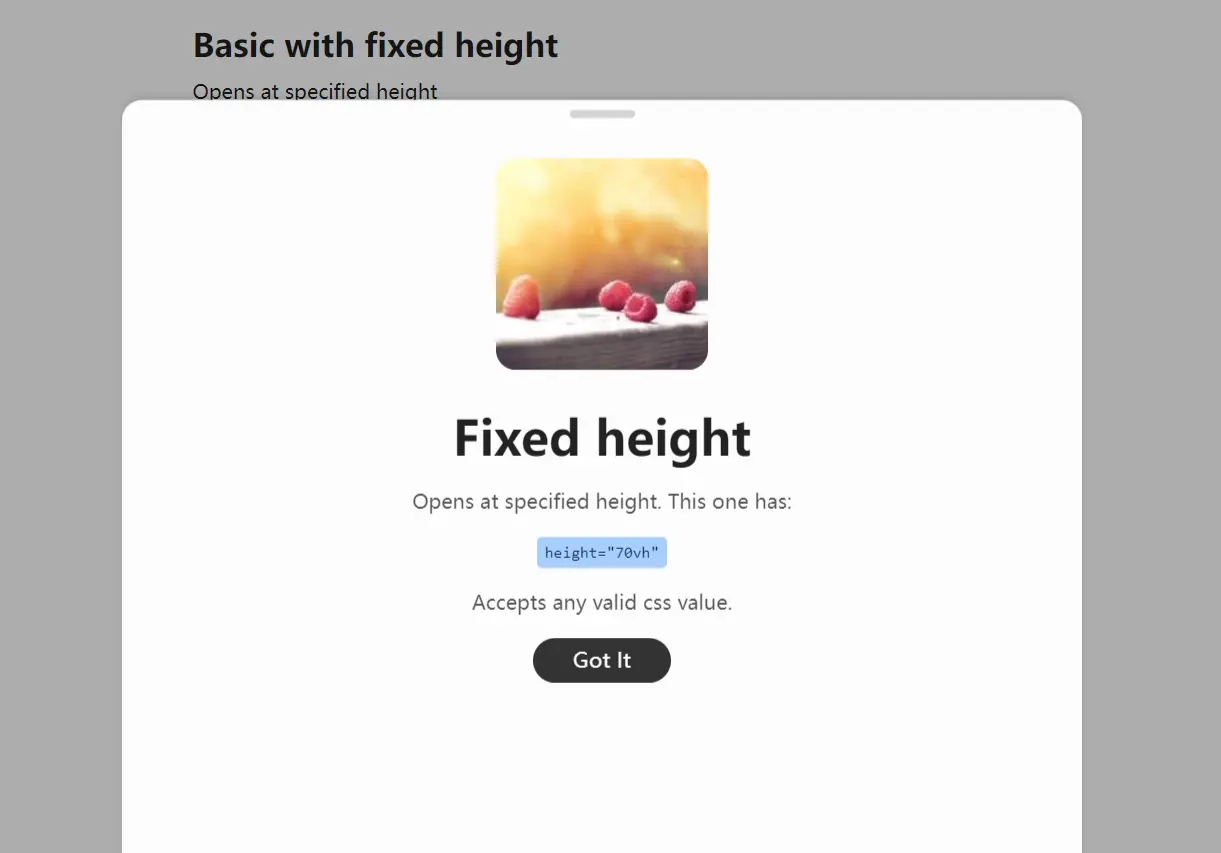
Diaper is a Svelte.js component library for creating iOS-style bottom sheets with smooth animations and drag interactions.
The component is built with the native HTML dialog element. You can use it to present supplementary content, actions, or forms in a mobile-first web application.
Features
🎨 iOS-Inspired Animations: Offers beautiful background animations reminiscent of iOS.
⚙️ Zero Dependencies: Keeps your project lean with no external library requirements.
🌗 Light/Dark Mode: Adapts to system themes automatically.
📱 Mobile-First Design: Primarily developed for mobile viewports.
💅 Flexible Styling: Customize appearance using Tailwind CSS, vanilla CSS, or inline styles.
🔧 Feature-Rich: Includes snap points, programmatic control, and dynamic content.
See It In Action
Use Cases
- Contextual Menus: Display action items related to a specific piece of content on the screen, such as share, edit, or delete options.
- Mobile Navigation: Implement a compact navigation drawer that slides up from the bottom, especially useful for applications with many sections.
- Form Inputs: Present forms for quick tasks like adding a comment, subscribing to a newsletter, or providing feedback without navigating to a new page.
- Information Display: Show additional details or metadata about an item, like product specifications or user profile information, in an overlay.
- Filters and Sorting: Offer users options to filter or sort content lists, appearing as a temporary sheet over the main view.
Install & Import
1. Install Diaper component with NPM.
npm install @devantic/diaper2. Import components to your Svelte project.
Bottomsheet: The primary component for creating bottom sheets.
import Bottomsheet from '@devantic/diaper';
// or
import { Bottomsheet } from '@devantic/diaper';Detachedsheet: A wrapper around Bottomsheet with added margin and more rounded corners.
import { Detachedsheet } from '@devantic/diaper';Fullsheet: A Bottomsheet wrapper pre-configured for full-screen coverage.
import { Fullsheet } from '@devantic/diaper';Longsheet: Designed for extensive content where the entire sheet scrolls within the viewport. It primarily requires the open prop.
import { Longsheet } from '@devantic/diaper';Basic Usage
<script>
  import Bottomsheet from '@devantic/diaper';
  let isOpen = false;
</script>
<button on:click={() => isOpen = true}>Open Sheet</button>
<Bottomsheet bind:open={isOpen}>
  <div slot="children">
    <p>This is the content of the bottom sheet.</p>
    <button on:click={() => isOpen = false}>Close</button>
  </div>
</Bottomsheet>
Available Component Props
open: A boolean to control the sheet’s visibility. You can bind to this prop.height: A string defining the sheet’s height (e.g.,'50%','300px','auto').maxHeight: Sets the maximum height of the sheet. Defaults to93vh.snapPoints: An array of numbers (0-1) or'auto'for defining positions the sheet can snap to.initialIndex: An integer specifying the snap point at which the sheet opens.canDragSheet: A boolean (default:true) to allow dragging the sheet from its content area.closeOnBackdropTap: A boolean (default:true) to close the sheet when the backdrop is tapped.onclose: A function that runs after the sheet closes.onsnap: A function that runs when the snap point changes.
Snippets for Content
Diaper uses Svelte snippets for content projection:
children: The main content area of the bottom sheet.header: Optional content for the sheet’s header.snapPoint1Content/snapPoint2Content: Optional content that displays when the sheet is at specific snap points.
Programmatic Control
You can control the sheet programmatically using bind:this:
<script>
  import Bottomsheet from '@devantic/diaper';
  let sheetInstance;
  let isOpen = false;
  function openSheet() {
    sheetInstance.showModal();
  }
  function closeSheet() {
    sheetInstance.close();
  }
  function snapToSecondPoint() {
    sheetInstance.snapTo(2); // Assuming snapPoints are defined
  }
</script>
<Bottomsheet bind:this={sheetInstance} bind:open={isOpen}>
  <!-- content -->
</Bottomsheet>
Styling
You can style Diaper components using the class or style props. For Tailwind CSS, you might need the baseClass prop with an important modifier (!) for intrinsic styles like border-radius.
Tailwind Example:
<Bottomsheet bind:open class="p-4 bg-blue-500" baseClass="!rounded-t-2xl">
  <!-- content -->
</Bottomsheet>
CSS Example:
<Bottomsheet bind:open style="background-color: lightblue; border-top-left-radius: 20px; border-top-right-radius: 20px;">
  <!-- content -->
</Bottomsheet>
You can also use global CSS or scoped styles as described in the official documentation.
Related Resources
- SvelteKit – The official Svelte application framework, perfect for using with Diaper components. https://kit.svelte.dev/
- TailwindCSS – A utility-first CSS framework that works well with Diaper for styling components. https://tailwindcss.com/
- Dialog Element – Learn more about the native HTML dialog element that Diaper uses under the hood. https://developer.mozilla.org/en-US/docs/Web/HTML/Element/dialog
FAQs
Q: Is Diaper only for mobile applications?
A: Diaper is designed with a “mobile-first” approach and its aesthetic is optimized for mobile viewports. While it might function on desktop, its primary intent and visual style are for mobile web experiences.
Q: How do snap points work?
A: Snap points are defined as an array of numbers between 0 and 1, relative to the sheet’s height (e.g., [0.25, 0.5, 0.75]). The value 0.25 means the sheet snaps to a point 25% from its top. You can also use 'auto' for automatic snap point calculation.
Q: How can I change the content of the sheet dynamically based on snap points?
A: You can use the snapPoint1Content and snapPoint2Content snippets. When the sheet is dragged to the corresponding snap point, its main content will change to what you provide in these snippets.
Q: How do I customize the appearance of the bottom sheet?
A: You can style Diaper components using either Tailwind classes, inline styles, or traditional CSS. Pass styling using the class prop for Tailwind, the style prop for inline CSS, or target the component with external CSS.
Q: Does Diaper work with server-side rendering?
A: Yes, Diaper is compatible with SSR in Svelte applications, including SvelteKit projects.
Q: How can I make the bottom sheet sticky at the bottom of the screen?
A: Use the stickyHeader prop set to true along with openSticky to make the sheet stick to the bottom of the viewport.

