The Future of Web Dev
The Future of Web Dev
Copy-Paste Tailwind CSS Animations for Web Projects
Add quick animations to Tailwind CSS projects. Copy and paste pre-built CSS animation classes for dynamic user interfaces.

Tailwind Animations provides a set of pre-built animations for TailwindCSS projects. It helps you add smooth, performant animations without writing custom CSS or JavaScript.
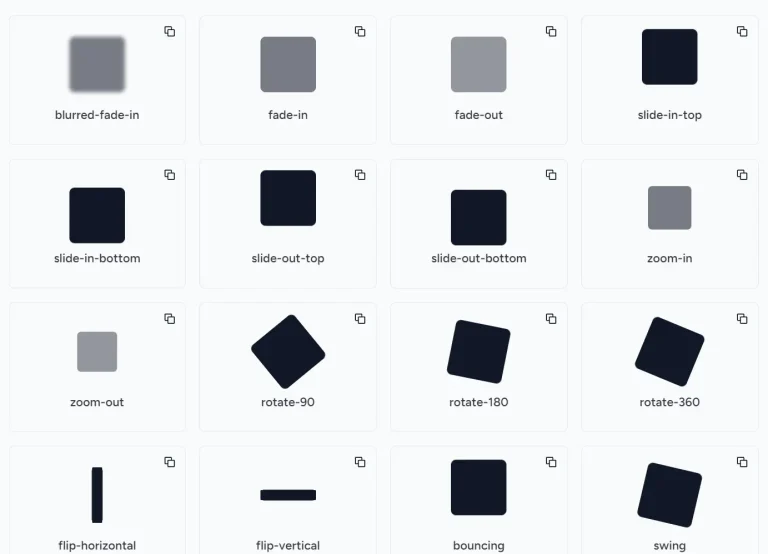
This animation set contains 17 distinct animation effects, including essential movements like bounce, pulse, and slide transitions. You can apply these animations through Tailwind’s utility classes, maintaining the framework’s consistent approach to styling.
Features
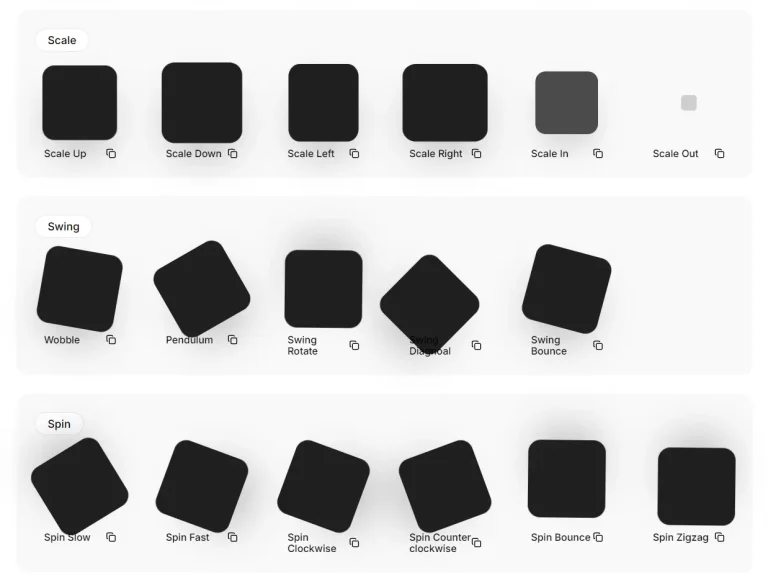
✨ Diverse Animations: Includes a variety of animations, such as Ping, Pulse, Bounce, Flash, and more complex motions like Rubber Band, Shake, and Swing.
🔄 Behavioral Control: Users can specify animation behavior with options like Play Infinite and Alternate.
🖱️ Interactive States: Options to trigger animations on hover, active, or focus states, and for continuous playback.
✂️ Copy-Paste Ready: Provides ready-to-use Tailwind CSS class names for quick integration into projects.
Use Cases
- Interactive Buttons: Use the “Pulse” or “Bounce” animations on buttons to provide clear visual feedback to users upon interaction. This makes buttons more noticeable and responsive, creating better engagement.
- Dynamic Navigation: Use the “Slide Up” or “Slide Down” animations on navigation menus for a smooth, modern experience. Animated transitions improve the visual flow of site navigation.
- Engaging Loaders: Use the “Ping” or “Flash” animations into loading indicators for attention-grabbing feedback during data fetching. These animations keep users engaged while content is loading.
- Visual Feedback: Apply “Shake” or “Rubber Band” animations to form inputs to signal errors or validation failures. Providing direct visual cues improves the user’s understanding of their interaction with the form.
- Animated Content Reveals: Use the “Slide Right and Fade” or “Slide Left and Fade” to smoothly introduce content sections as users scroll or interact with the page. This enhances the user experience by making content appear in a visually engaging way.
Usage
- Visit the Tailwind Animations Gallery.
- Search for the specific animation you want to use.
- Click the ‘Expand’ button to see all customization options.
- Select when the animation should trigger (hover, active, focus, always).
- Specify the animation’s behavior: Play Infinite or Alternate.
- Copy the generated Tailwind CSS class names. Example:
hover:animate-spin active:animate-spin. - Add these class names to the element within your Tailwind CSS project.

FAQs
Q: Can I customize the animation speed?
A: If you need more control, you need to adjust the speed with custom CSS in your project.
Q: Are these animations compatible with all browsers?
A: These animations use standard CSS properties and are generally compatible with most modern browsers.
Q: Can I use multiple animations on the same element?
A: Yes, you can combine multiple animation classes on the same element. However, you should test the outcome to avoid visual conflicts.
Q: Do I need any other software to use this tool?
A: No. You only need Tailwind CSS installed to use these animation classes.
Q: How do I add custom animations that are not provided by this tool?
A: If you require a specific animation that’s not included, you need to create it with custom CSS.