The Future of Web Dev
The Future of Web Dev
CLI Tool to Clean Shadcn UI Components – shadcn-remover
Use the this CLI tool to quickly remove specific or all Shadcn UI components from your project. Simplify cleanup with dry runs and interactive mode.
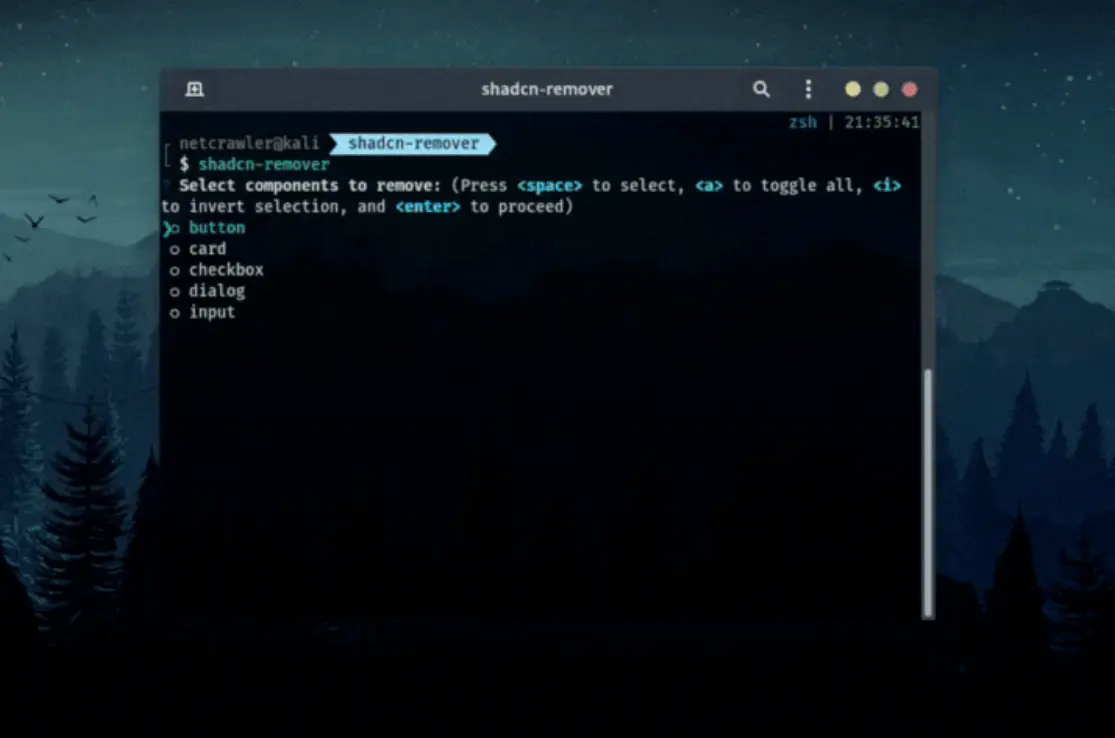
shadcn-remover is a command-line interface (CLI) tool built to help you remove Shadcn UI components from your web projects.
You can use it to keep your project tidy, remove unused elements, or restructure your component library without manual file management.
Features
🎯 Specific Component Removal: Target one or multiple components by name for precise cleanup.
🤔 Interactive Selection: Run the tool without arguments to get a list of components and choose which ones to remove.
📂 Flexible Structure Detection: Recognizes both single-file components (e.g., button.tsx) and directory-based components (e.g., dialog/).
🧹 Bulk Removal: Use the --all option to remove every detected Shadcn UI component simultaneously.
👀 Dry Run Mode: Preview the files and directories marked for deletion without actually removing anything using --dry-run.
✅ Safety Confirmation: Prompts for confirmation before executing any deletion operations.
Installation
# Using npm
npm install -g shadcn-remover
# Using yarn
yarn global add shadcn-remover
# Using pnpm
pnpm add -g shadcn-remover
Usage
# Basic command structure
shadcn-remover [components...] [options]
Examples:
# Remove specific components
shadcn-remover button alert-dialog sheet
# Remove all components (with confirmation prompt)
shadcn-remover --all
# Launch interactive selection mode
shadcn-remover
# Preview removal of the 'card' component without making changes
shadcn-remover card --dry-run
# Preview removal of all components
shadcn-remover --all --dry-run
Available Options:
| Option | Alias | Description |
|---|---|---|
--all | -a | Remove all detected shadcn/ui components |
--dry-run | -d | Preview removal actions without making changes |
--version | -V | Display the tool’s version number |
--help | -h | Show command help information |
By default, the tool looks for components in the src/components/ui/ directory of your project. Run the command from your project’s root directory for correct path detection.
FAQs
Q: Is the removal process reversible?
A: No, the tool permanently deletes files and directories. Use the --dry-run option first to check what will be removed before confirming the deletion. Version control (like Git) is recommended for recovery options.
Q: How does shadcn-remover identify components?
A: It scans the src/components/ui/ directory for files or subdirectories matching the names provided or all entries if --all is used. It handles both direct .tsx/.jsx files and components structured within their own folders.
Q: Does it remove component dependencies or imports?
A: No, shadcn-remover only deletes the component files/folders within the src/components/ui directory. You need to manually remove imports and handle any dependencies related to the removed components in your project code.