The Future of Web Dev
The Future of Web Dev
Snapcn: 40+ Free Remotion Video Components for Product Demos
Install animated React video scenes with the shadcn CLI, edit their timing and colors, and render product clips locally with Remotion.
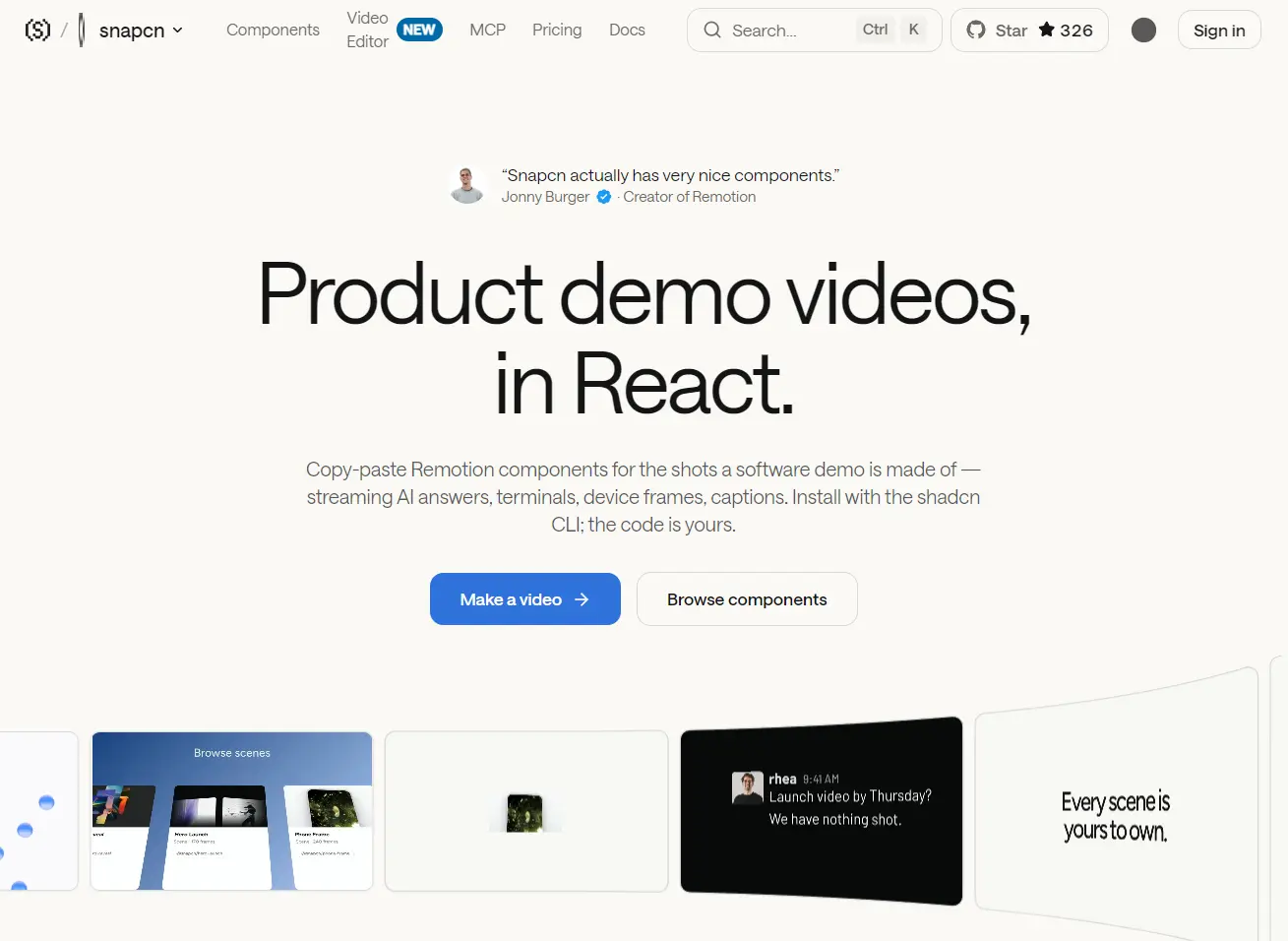
snapcn is a React component registry for creating product demo videos with Remotion.
The built-in free components animate AI conversations, terminal sessions, app recordings inside device frames, captions, logos, and launch titles.
You can install individual scenes through the shadcn CLI and edit their TypeScript source files locally.
Features
- Editable TSX source files installed from the
@snapcnshadcn registry. - Frame-based animation through Remotion’s
useCurrentFrame(),interpolate(), andspring()APIs. - Phone and laptop frames that accept screen recordings, images, or React content.
- Word-timed captions with landscape, square, and portrait positioning presets.
- Light and dark themes with
modeandthemeprops for color customization. - Browser video editor for arranging scenes, editing text, and working with audio.
- One-click insertion into compatible Remotion Studio projects.
Available Components
| Category | Free Components |
|---|---|
| Text & Titles | Check Cycle, Word Wheel, Word Gather, Font Shuffle, Type Morph, Text Reveal, Punch Lines, Text Swell, Text Highlight, Text Rewrite, Text Select, Text Swap, Text Build, Word Flip |
| Captions | Word Captions, Karaoke Captions |
| Logos | Logo Collapse, Logo Drift, Logo Assemble, Logo Flicker, Block Wordmark |
| Screens & Devices | Phone Frame, Laptop Frame, Terminal Simulator, Screen Recording, Cursor Track, Capture Reveal |
| Social Proof | Channel Thread, Follower Rush |
| Scenes | Orb Swarm, Card Rail, Count Grid, Roster Grant, Wordmark Cut, Announce Title, Status Cycle, Product Hero, Orbit Gallery, Moodboard Reveal, Reel Collage |
| AI Chat Input | Search Typing, Prompt Send, Prompt Zoom, Answer Stream, Answer Highlight, Agent Steps |
How To Use It
1. Create a Remotion Project
For a new video project, run the Remotion generator and open the generated directory:
npx create-video@latest2. Configure the @/ Import Alias
A project created with create-video needs the alias in both TypeScript and Remotion’s bundler. In tsconfig.json, merge this entry into the existing compilerOptions. For TypeScript 5, set "baseUrl": "." as well.
{
  "compilerOptions": {
    "paths": {
      "@/*": ["./src/*"]
    }
  }
}
In remotion.config.ts, register the corresponding bundler alias. Keep any existing bundler configuration, including Tailwind processing, when integrating this snippet.
import path from "node:path";
import { Config } from "@remotion/cli/config";
Config.overrideBundlerConfig((config) => ({
  ...config,
  resolve: {
    ...config.resolve,
    alias: {
      ...config.resolve?.alias,
      // Match the @/* path in tsconfig.json.
      "@": path.join(process.cwd(), "src"),
    },
  },
}));
3. Create components.json
Remotion is not recognized by shadcn init, so create components.json in the project root. This configuration places installed scenes under src/components/ and shared files under src/lib/.
{
  "$schema": "https://ui.shadcn.com/schema.json",
  "style": "new-york",
  "rsc": false,
  "tsx": true,
  "tailwind": {
    "config": "",
    "css": "src/index.css",
    "baseColor": "neutral",
    "cssVariables": true
  },
  "aliases": {
    "components": "@/components",
    "utils": "@/lib/utils",
    "ui": "@/components/ui",
    "lib": "@/lib",
    "hooks": "@/hooks"
  },
  "iconLibrary": "lucide"
}
4. Install a Video Component
Install Text Reveal, an animated headline scene. The CLI copies its source and required shared files into your project.
npx shadcn@latest add @snapcn/text-reveal5. Basic Usage
Register Text Reveal in src/Root.tsx. A 90-frame composition at 30 fps gives the scene three seconds. Use dark mode for a video with a black background.
// src/Root.tsx
import { Composition } from "remotion";
import { TextReveal } from "@/components/snap-cn/text-reveal";
export const RemotionRoot = () => (
  <Composition
    id="ReleaseTitle"
    component={TextReveal}
    durationInFrames={90}
    fps={30}
    width={1280}
    height={720}
    defaultProps={{
      text: "Meet Atlas Reports",
      mode: "dark",
    }}
  />
);
6. Preview and Render an MP4
npx remotion studio
npx remotion render ReleaseTitle out.mp4
Example: Phone Demo with Karaoke Captions
Create an eight-second walkthrough of a mobile reporting app. Phone Frame plays the app recording muted, while a voiceover supplies the narration and Karaoke Captions highlights each spoken word near the end. Place reports-demo.mp4 and reports-voiceover.mp3 in public/. The sample caption timings use frames local to the surrounding Sequence. Adjust them to match your voiceover.
npx shadcn@latest add @snapcn/phone-frame @snapcn/karaoke-captions// src/Root.tsx
import {
AbsoluteFill,
Audio,
Composition,
Sequence,
staticFile,
} from "remotion";
import { PhoneFrame } from "@/components/snap-cn/phone-frame";
import { KaraokeCaptions } from "@/components/snap-cn/karaoke-captions";
const ReportsDemo = () => (
<AbsoluteFill style={{ backgroundColor: "#090f1f" }}>
<PhoneFrame
variant="showcase"
entrance="float"
scale={0.9}
screenSrc={staticFile("reports-demo.mp4")}
mode="dark"
/>
{/* Start the voiceover and captions at 4.5 seconds. */}
<Sequence from={135} durationInFrames={90}>
<Audio src={staticFile("reports-voiceover.mp3")} />
<KaraokeCaptions
preset="karaoke"
lines={[
{
text: "Export your report in seconds",
startFrame: 0,
endFrame: 84,
wordTimings: [0, 15, 32, 50, 69],
emphasize: [4],
},
]}
aspect="landscape"
mode="dark"
/>
</Sequence>
</AbsoluteFill>
);
export const RemotionRoot = () => (
<Composition
id="ReportsDemo"
component={ReportsDemo}
durationInFrames={240}
fps={30}
width={1280}
height={720}
/>
);Useful Props and Customization
| Component | Props | Usage |
|---|---|---|
| Text Reveal | text, fontSize, initialScale | Headline text, final font size, and opening-word zoom. |
| Text Reveal | holdDuration, recedeDuration, assembleDuration | Frame counts for the zoom, retreat, and word assembly. |
| Phone Frame | screenSrc, children | Video or image URL, or custom React content inside the device. |
| Phone Frame | variant, entrance, scale | Choose flat, tilt, or showcase, plus the entrance and frame size. |
| Karaoke Captions | preset, aspect | Choose boxed, karaoke, highlight, or clean and a caption safe area. |
| Karaoke Captions | lines with startFrame, endFrame, wordTimings, emphasize | Frame timings and highlighted word indexes inside each caption line. |
| Common styling | mode, theme | Light or dark mode and SnapCnTheme color overrides. |
Timing and Source Files
Text Reveal has a three-second scene at 30 fps, and Phone Frame has an eight-second scene at 30 fps. Keep the containing composition or sequence long enough for the intended camera move or text animation. In a nested Sequence, frame calculations start at the sequence’s beginning.
The registry writes scenes to src/components/snap-cn/ and common UI helpers to src/lib/snap-cn-ui/ with the aliases above. Change timing, CSS styles, or colors directly in those files. The components use inline theme colors and do not require Tailwind CSS for video rendering. Their theme prop accepts overrides to the SnapCnTheme tokens.
Other Ways to Work with snapcn
Online Video Editor
The snapcn video editor lets you arrange component clips on a timeline, replace their text and images, add audio, and export MP4 files in the browser. The free plan has unlimited 720p exports with a small snapcn mark. Paid plans include watermark-free 1080p exports.
Add Components Directly to Remotion Studio
The Remotion Studio integration works with Remotion 4.0.524 or newer. Run npx remotion studio, open a composition, and select Add to Remotion Studio on a compatible snapcn component page.
Confirm the source in Studio to insert an editable timeline layer. This method writes a local .element.tsx file and does not require the shadcn CLI or components.json.
Optional Agent Skill
The snapcn agent skill gives coding agents component names, props, scene lengths, and video composition guidance.
Dedicated skills are available for product demos, launch videos, typography, logo animations, and explainers. Install the free skill in your coding-agent environment:
npx skills add snapcndev/snapcn --skill snapcn --yesAlternatives and Related Resources
- Remocn: 350+ Copy-paste Video Components for Remotion
- Copy-Paste Video Components with Editframe and Shadcn – framecn
- Build AI-powered Video Web Apps – AI Video Kit
FAQs
Q: Why do @/ imports work in the editor but fail during a video render?
A: Remotion’s bundler does not read TypeScript’s path aliases. Set the @ alias in remotion.config.ts as well as tsconfig.json.
Q: Why does a Text Reveal render show dark text on a black background?
A: snapcn’s default light theme uses dark text, and a Remotion render has a black background unless you draw one. Pass mode="dark" or render the component over a light background.
Q: Can I show snapcn animations in a Next.js app?
A: Yes. Use Remotion’s @remotion/player to embed a composition in a React or Next.js page. The CLI rendering workflow exports video files from the Remotion project.
Q: Do I need Tailwind CSS or a paid snapcn account to render a video locally?
A: No. The free scenes use inline styling and are MIT licensed. Install them through the public registry and render your Remotion composition locally. Paid features include Pro components, the MCP server, and higher-resolution exports in snapcn’s browser editor.