The Future of Web Dev
The Future of Web Dev
UploadCN: 50+ shadcn File Upload Components & Blocks for React
50+ editable shadcn upload components & blocks, including 30 animated designs, with queues, retries, and S3/R2 storage adapters.
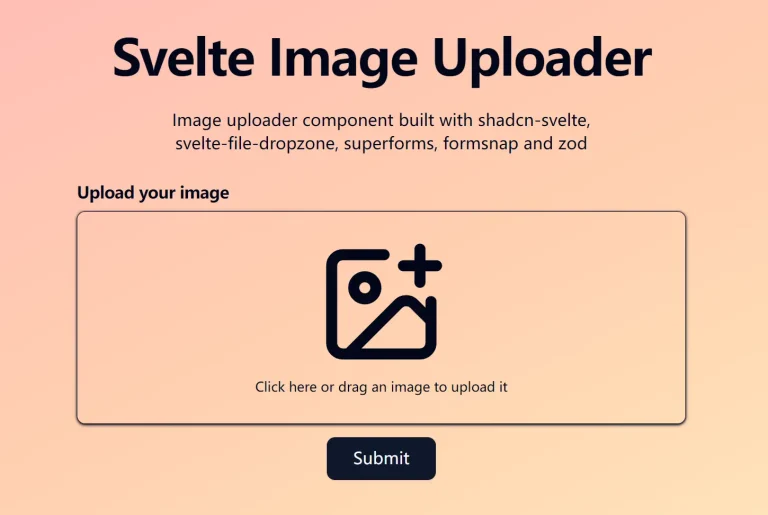
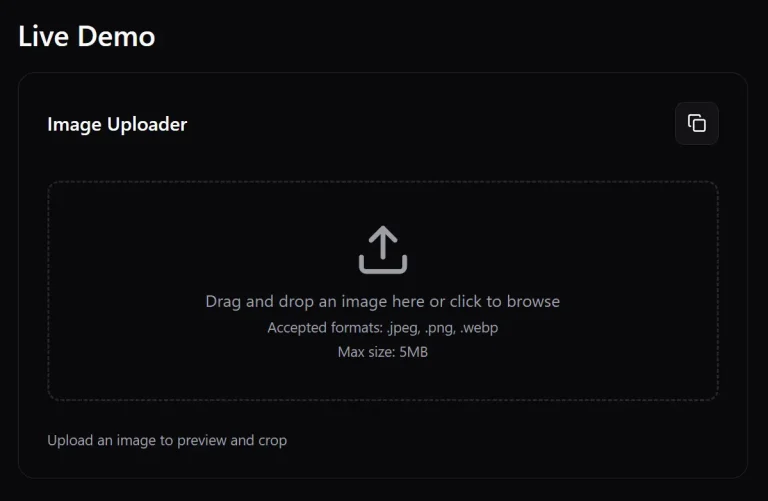
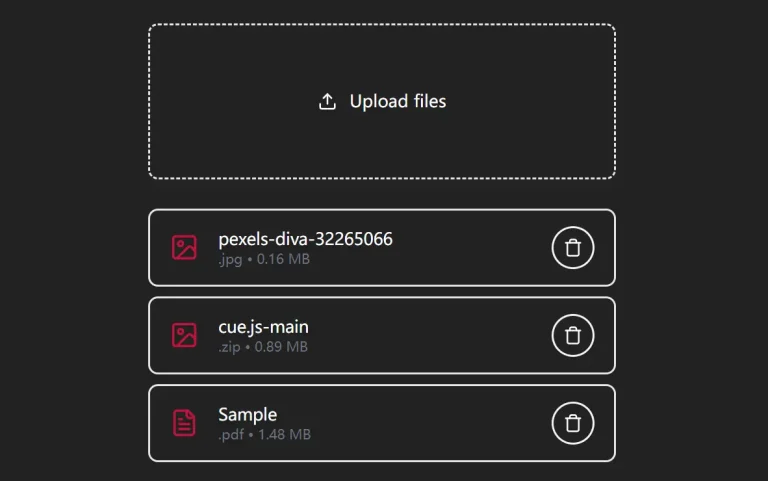
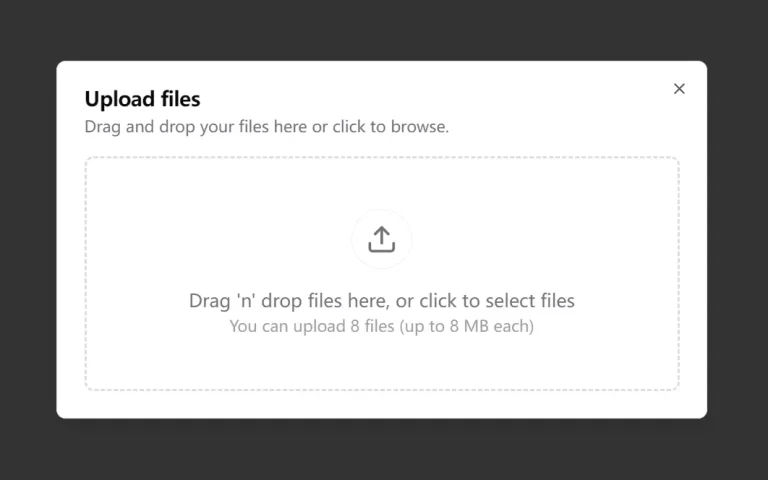
UploadCN is a React and shadcn/ui component library for building file dropzones, image uploaders, document forms, and upload queues.
It provides 50+ editable UI components & blocks, including 30 animated designs, and the upload engine manages progress, retries, and direct transfers to S3 or R2.
Features
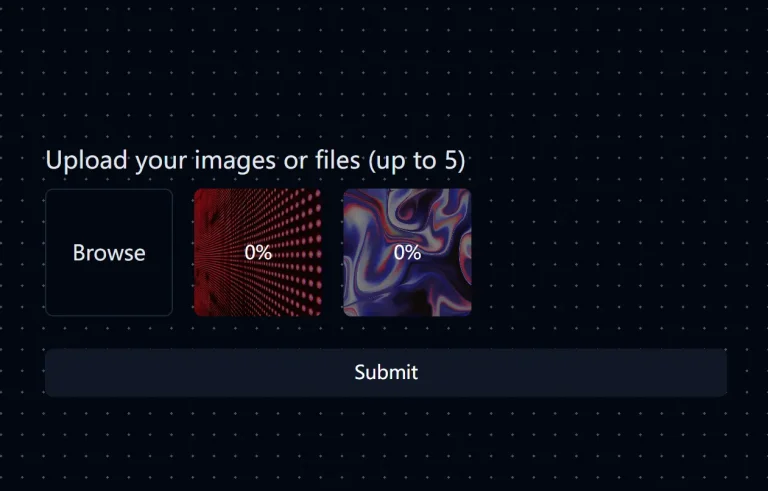
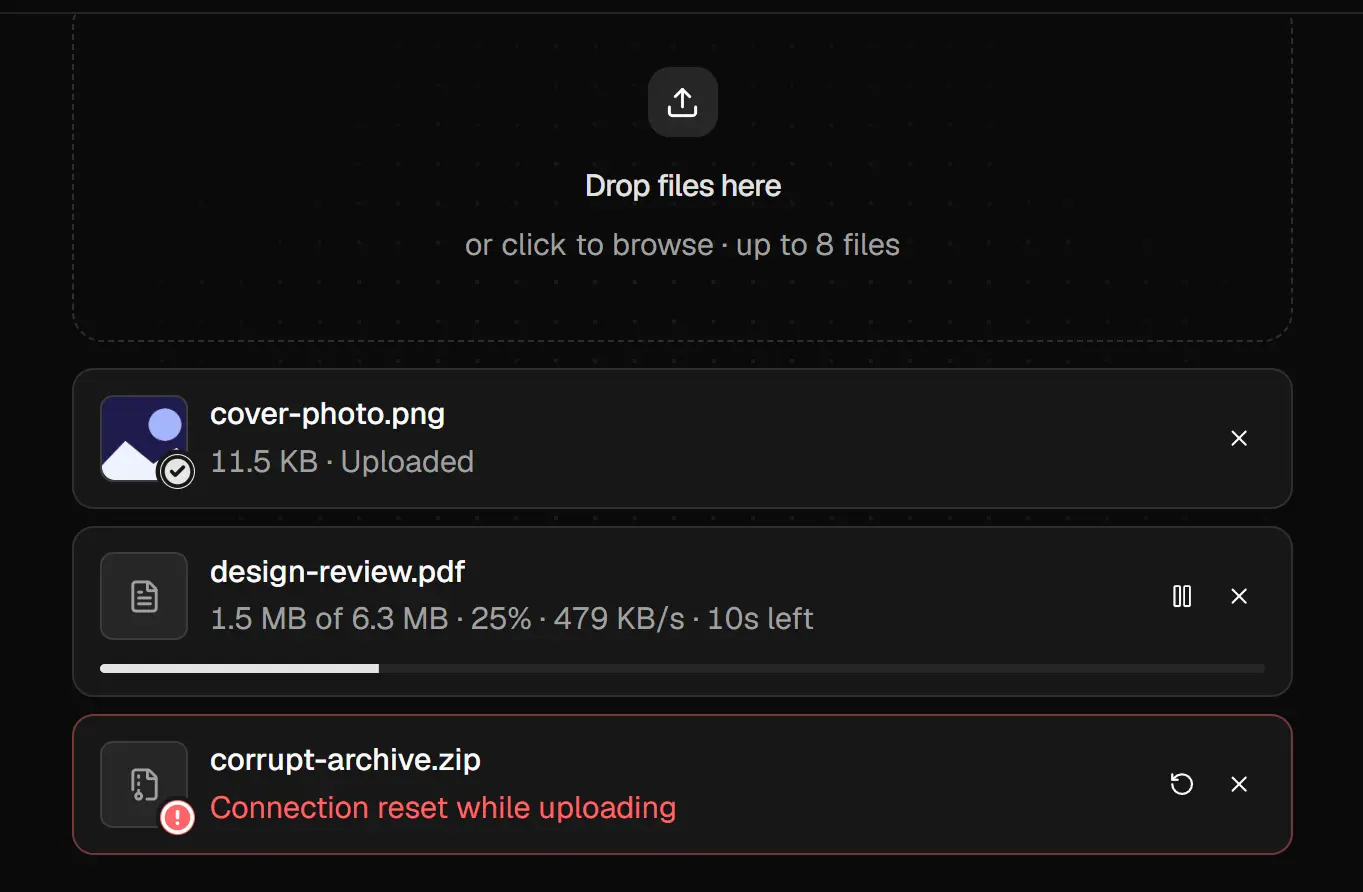
- Drag-and-drop file selection, queued transfers, progress indicators, and retry controls.
- 90 interactive examples, including upload blocks, composable primitives, storage integrations, and upload behaviors.
- Presigned uploads to Amazon S3 and Cloudflare R2, plus Cloudinary, local disk, custom APIs, and browser-only file handling.
- Concurrent multipart transfers with pause, resume, and optional IndexedDB recovery.
- Image cropping, compression, previews, file validation, and media restrictions.
- Optional virus scanning and OCR integrations through the server package.
- Tailwind CSS 4 styles for Vega, Nova, Maia, Lyra, Mira, Luma, Sera, and Rhea, including Radix, Base UI, and React Aria configurations.
Use Cases
- Add a profile photo picker with cropping and upload progress to an account settings page.
- Queue product images in a CMS, then retry individual failed transfers.
- Collect signed contracts and application documents with file-size limits.
- Attach pasted or dropped files to an AI chat composer.
- Review CSV columns and rows before submitting a data import.
How to Use It
1. Install File Upload
Initialize shadcn/ui.
npx shadcn@latest initInstall the File Upload component. The registry places editable source in components/file-upload.tsx and components/ui/upload.tsx, and installs @uploadcn/react and @uploadcn/core.
npx shadcn@latest add @uploadcn/file-upload2. Basic Usage: Browser-Only File Selection
For local previews and uploader UI testing, pass localAdapter().
app/documents/page.tsx
"use client"
import { localAdapter } from "@uploadcn/core"
import { FileUpload } from "@/components/file-upload"
const adapter = localAdapter()
export default function DocumentsPage() {
  return (
    <main className="mx-auto max-w-2xl p-6">
      <h1 className="mb-4 text-xl font-semibold">Project documents</h1>
      <FileUpload
        adapter={adapter}
        accept="image/*,application/pdf"
        maxSize={20_000_000}
        maxFiles={5}
      />
    </main>
  )
}
3. Connect Next.js to Amazon S3
For files that must reach cloud storage, install UploadCN’s Next.js route item. It creates app/api/upload/route.ts and installs the required server package.
npx shadcn@latest add @uploadcn/upload-routeSet the S3 credentials in .env.local. Keep them server-side; do not use NEXT_PUBLIC_ variables for storage secrets.
S3_BUCKET=project-documents
S3_REGION=us-east-1
S3_ACCESS_KEY_ID=your-access-key-id
S3_SECRET_ACCESS_KEY=your-secret-access-key
The upload route needs the application’s own authentication check. This example assumes that @/lib/auth exports a server-side auth() function whose session contains user.id. Adapt that import and session lookup to your authentication setup before deployment. The route rejects unauthenticated requests, restricts file size and type, and keeps uploaded object keys under the authenticated user’s ID.
app/api/upload/route.ts
import {
  UploadRouteError,
  createUploadRoute,
  s3Storage,
} from "@uploadcn/server"
import { auth } from "@/lib/auth" // Your app's server-side auth helper
export const { POST } = createUploadRoute({
  storage: s3Storage({
    bucket: process.env.S3_BUCKET!,
    region: process.env.S3_REGION!,
    accessKeyId: process.env.S3_ACCESS_KEY_ID!,
    secretAccessKey: process.env.S3_SECRET_ACCESS_KEY!,
  }),
  maxFileSize: 128 * 1024 * 1024,
  allowedTypes: ["application/pdf"],
  async authorize({ key }) {
    const session = await auth()
    const userId = session?.user?.id
    if (!userId) throw new UploadRouteError("Unauthorized", 401)
    // A multipart action must only access the caller's objects.
    if (key && !key.startsWith(`${userId}/`)) {
      throw new UploadRouteError("Forbidden", 403)
    }
    return { id: userId }
  },
  getKey: ({ auth, file }) =>
    `${auth.id}/${crypto.randomUUID()}/${file.name}`,
})
Use s3Adapter in a Client Component. The client limit matches the server’s 128 MiB limit. Files at or above UploadCN’s default 64 MiB S3 multipart threshold use multipart transfers.
components/contracts-upload.tsx
"use client"
import { MiB, s3Adapter } from "@uploadcn/core"
import { FileUpload } from "@/components/file-upload"
const adapter = s3Adapter({ endpoint: "/api/upload" })
export function ContractsUpload() {
  return (
    <FileUpload
      adapter={adapter}
      accept="application/pdf"
      maxSize={128 * MiB}
      maxFiles={3}
      title="Upload contract PDFs"
    />
  )
}
Configure the S3 bucket’s CORS policy for the app origin. The multipart client reads each uploaded part’s ETag, which the browser must be permitted to access. Replace the example origin with your production domain and add your development origin when testing locally.
[
  {
    "AllowedOrigins": ["https://app.example.com"],
    "AllowedMethods": ["PUT"],
    "AllowedHeaders": ["content-type"],
    "ExposeHeaders": ["ETag"],
    "MaxAgeSeconds": 3600
  }
]
For Cloudflare R2, switch to r2Storage() in the server route and supply the account ID, bucket, and R2 access credentials.
4. Review a Batch Before Uploading
Set autoUpload={false} on FileUpload when staff need to review the queue before transferring files. In ContractsUpload above, replace the <FileUpload /> element with:
<FileUpload
  adapter={adapter}
  autoUpload={false}
  accept="application/pdf"
  maxFiles={3}
  maxSize={128 * MiB}
  title="Review documents before upload"
  onComplete={(items) => {
    const uploaded = items.filter((item) => item.status === "success")
    console.info(`${uploaded.length} documents uploaded`)
  }}
/>
Available Upload Blocks
Standard Blocks
| Category | Blocks |
|---|---|
| General file uploads | File Upload, Upload Button, Upload Dialog, Upload Popover, Upload Table, Upload Tabs, Upload Field, Global Upload |
| Images and media | Image Upload, Avatar Upload, Gallery Upload, Logo Upload, Image Metadata, Camera Upload, Video Upload, Audio Upload, Product Media |
| Documents and data | Document Upload, Document Ingest, OCR Upload, CSV Import, Document Checklist, Receipt Upload |
| Application workflows | Chat Attachments, Identity Verification, Job Application, Property Photos, Assignment Submission |
Animated Blocks
| Category | Blocks |
|---|---|
| Dropzones and buttons | Folder Upload, Upload Island, Paper Plane Button, Morphing Button, Liquid Dropzone, Magnetic Dropzone, Ripple Dropzone, Cloud Dropzone |
| Photo and card effects | Upload Stack, Polaroid Upload, Image Reveal, Flip Card, Document Scanner |
| Progress and status | Progress Ring, Upload Dock, Upload Terminal, Odometer, Animated Queue, Confetti |
| Object-themed uploads | Envelope, Shopping Bag, Orbit, Vinyl, Rocket, Battery, Typewriter, Hourglass, Blueprint, Stamp, Delivery |
Form Integration and React Primitives
Install UploadField for React Hook Form or TanStack Form. Its onChange callback receives successful upload object keys as string[], and onUploadingChange reports active transfer state. Store object keys in form values and prevent submission while necessary uploads are in progress.
npx shadcn@latest add @uploadcn/upload-fieldAlternatives and Related Resources