The Future of Web Dev
The Future of Web Dev
Hikari: Free Next.js SaaS Starter with Supabase & Stripe
Hono API routes, Drizzle database access, Supabase Auth, and local subscription tests in a free Next.js starter with full source access.
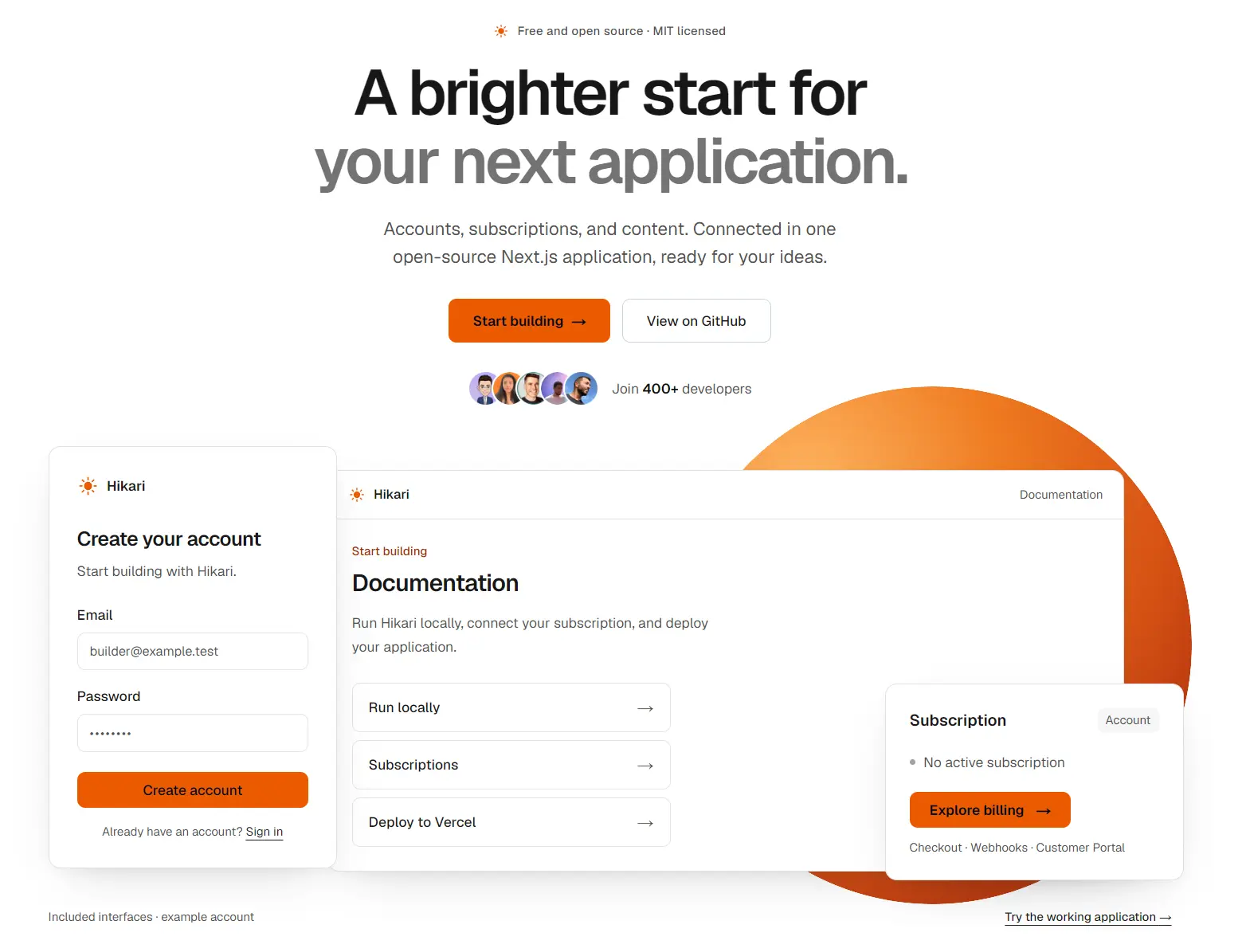
Hikari is an open-source Next.js SaaS starter kit for building individual-account applications with Supabase authentication and Stripe subscriptions.
It has protected Dashboard and Account pages, subscription management, and a Docs and Blog section.
Features
- Email/password authentication and password recovery through Supabase Auth.
- Protected Dashboard and Account pages for individual users.
- Monthly and yearly Stripe subscriptions across Starter, Pro, and Business plans.
- Stripe Checkout, Customer Portal, and five signed subscription lifecycle webhook events.
- Subscription access checked on the server against stored PostgreSQL state.
- Searchable Fumadocs documentation and a local MDX Blog.
- Next.js App Router, React 19, TypeScript, Tailwind CSS 4, Hono, Drizzle ORM, and React Query.
- Local Supabase development, unit tests, database integration tests, and Playwright E2E checks.
How to Use It
1. Run Hikari locally
Install Git, Bun, Node.js, and Docker with the daemon running. You also need a Bash-capable shell for ./coremvp.
Local authentication requires no Stripe account, hosted Supabase project, or Vercel account.
git clone https://github.com/coremvp/hikari.git
cd hikari
bun install
# Verify the Supabase CLI installed with the project.
bunx --no-install supabase --version
bunx --no-install supabase --help
# Start local authentication and database services.
bunx supabase start
bunx supabase migration up --local
# Write local connection values to the ignored .env.local file.
./coremvp env sync
bun run dev
Open http://localhost:3000 and create an account. Signup opens the protected Dashboard immediately. To check password recovery, open the local mailbox at http://127.0.0.1:55424 after requesting a reset.
The Supabase services use ports 55420 through 55424. If startup fails, check Docker and those ports.
Run ./coremvp env list to find missing configuration names. It identifies unset configuration names and does not print secret values.
Stop the services with bunx supabase stop. The migration up --local step is for a fresh project.
2. Connect Stripe test subscriptions
In your Stripe test account, create three active Products for Starter, Pro, and Business. Give each Product a monthly and a yearly fixed-price recurring option, for six Price IDs total. Use standard per-unit billing with a quantity of one and an interval count of one.
Open src/config/pricing.config.ts. Replace each tier’s productId, priceIdMonthly, and priceIdYearly, then set priceMonthly and priceYearly to the amounts shown in your UI. Stripe charges the amount attached to its Price ID. Hikari does not automatically reconcile that amount with the displayed price. The configured Price IDs also determine eligible subscription access.
Keep the test API key and webhook signing secret in the ignored .env.local file:
STRIPE_SECRET_KEY=sk_test_REPLACE_WITH_YOUR_KEY
STRIPE_WEBHOOK_SECRET=whsec_REPLACE_WITH_LISTENER_SECRET
Install the Stripe CLI. Use the test account that owns your Products and Prices:
stripe login
stripe listen --events customer.subscription.created,customer.subscription.updated,customer.subscription.deleted,customer.subscription.paused,customer.subscription.resumed --forward-to localhost:3000/api/webhooks/stripe
Replace the placeholder STRIPE_WEBHOOK_SECRET with the listener’s actual signing secret and restart bun run dev. Keep the listener running during Checkout and cancellation.
In Stripe Customer Portal settings, enable payment-method updates, invoice history, and cancellation at the end of the billing period. Leave plan and quantity changes disabled until you configure their access rules.
On Hikari’s homepage, select Pricing, choose a monthly or yearly plan, and sign in or sign up. The selected plan continues to test Checkout after authentication. Use Stripe’s test card 4242 4242 4242 4242 with a future expiry and any three-digit CVC. After returning from Checkout, select Refresh subscription on the Account page.
Hikari grants subscriber access only when its stored subscription has status active or trialing and uses an approved recurring Price ID. A scheduled cancellation retains access until the subscription status changes. Checkout redirects, browser state, and unapproved Price IDs cannot grant paid access.
3. Test authentication and billing
Keep the application and local Supabase services running for account E2E tests. The subscription E2E also requires a configured Stripe test account, all six recurring prices, Customer Portal, and the running webhook listener.
bun run lint
bun run typecheck
bun run test
bun run build
bunx playwright install chromium
./coremvp e2e auth
bun run test:integration
./coremvp e2e billing:subscription
The auth tests exercise signup, protected Dashboard and Account pages, API authentication, sign-in, logout, and recovery emails in the local mailbox. Database integration tests exercise subscription persistence and permissions against local PostgreSQL with signed Stripe fixtures. The billing E2E creates a real Stripe test subscription, waits for webhook-backed access, opens Customer Portal, cancels the subscription, and checks that access is revoked.
Application Routes and Key Files
Routes
| Route | Purpose |
|---|---|
/signup, /signin | Email/password account creation and sign-in. |
/forgot-password, /reset-password | Supabase password recovery. |
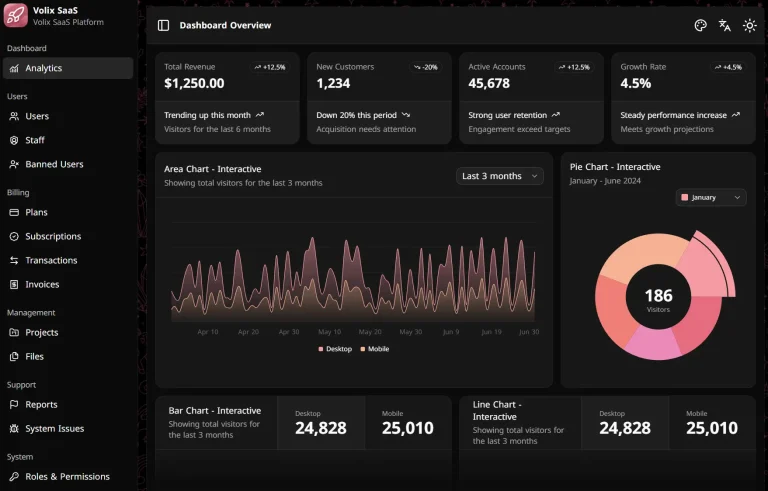
/dashboard | Protected account overview with example charts and projects. |
/account | Subscription status, Checkout entry, and Customer Portal. |
/api/account | Authenticated account endpoint. |
/api/subscription/access | Server-checked subscriber access endpoint. |
/api/webhooks/stripe | Signed Stripe subscription events. |
/auth/callback, /auth/confirm | Supabase Auth callback and confirmation handling. |
/docs, /blog | Public documentation and articles. |
Files
| File or directory | Customize |
|---|---|
src/app/(protected)/dashboard/page.tsx | Dashboard overview. |
src/components/dashboard-shell.tsx | Navigation, sidebar, and example workspace selectors. |
src/components/dashboard-analytics.tsx | Example analytics charts. |
src/proxy.ts | Session-refresh matcher for protected URLs. |
src/app/api/[[...route]]/route.ts | Next.js entry for Hono application APIs. |
src/api/app.ts, src/api/billing.ts | Account routes and billing endpoints. |
src/services/, src/providers/ | Business rules, access checks, and Supabase/Stripe calls. |
src/repositories/, src/db/schema.ts | Database queries and Drizzle models. |
src/config/pricing.config.ts | Stripe Product and Price IDs plus displayed amounts. |
supabase/migrations/ | PostgreSQL schema migrations. |
src/content/docs/, src/content/blogs/ | Documentation and Blog MDX. |
src/app/globals.css, src/components/logo.tsx | Global styling and branding. |
Customize the Starter
Add an authenticated page and API operation
Create a page inside src/app/(protected) to inherit the server-side authentication check from its layout. If the new URL falls outside Hikari’s existing protected matcher entries, update src/proxy.ts so Supabase session cookies refresh on that URL.
The page layout checks currentUser() from src/services/auth.ts. For Hono account endpoints, follow the existing /api/account handler in src/api/app.ts, which calls auth.requireUser(). In src/api/billing.ts, subscriber-only handlers obtain the authenticated user and check access through service.requireAccess(userId). The existing endpoint shows the implementation:
// Excerpt from createBillingRoutes() in src/api/billing.ts
.get('/subscription/access', async (c) => {
  await service.requireAccess((await user()).id);
  return c.json({ access: true });
})
Connect real Dashboard data
The Organization/Project selectors, project cards, and charts do not create persisted organizations, projects, or analytics. Replace the samples with your own database records and server-side authorization rules. Hikari’s billing tables store account-to-Stripe Customer mappings and subscription state. The browser’s Supabase roles have no direct privileges to those billing tables.
Write a SQL migration in supabase/migrations/ and update src/db/schema.ts with its Drizzle model. New application tables require their own access rules. Email confirmation is disabled for immediate signup, so treat an entered email address as unverified when an application feature depends on email ownership. Supabase Auth handles password recovery emails. Application newsletters and other outbound emails require your own implementation.
Publish Docs and Blog content
Create src/content/docs/features/account-billing.mdx:
---
title: Manage Your Subscription
description: Update payment details and review invoices.
---
## Open billing settings
Sign in, open Account, and select Billing portal to manage your
payment method, invoices, or subscription cancellation.
Add features/account-billing to the pages array in src/content/docs/meta.json to put the new page in the Docs navigation. The page URL becomes /docs/features/account-billing. Fumadocs supplies sidebar navigation, heading anchors, code highlighting, and search through Hikari’s /api/search endpoint.
Blog articles belong in src/content/blogs/. Their MDX frontmatter sets title, description, date, and author, with optional cover and index fields. An article marked index: false does not appear in site listings and receives noindex, but its URL remains publicly accessible. Keep private drafts outside the published content directory.
Run the content checks after editing MDX:
bun run content:generate
bun run typecheck
bun run build
Deploy to Vercel and Supabase
Start with a fresh hosted Supabase project. Hikari’s migrations refuse to discard nonempty legacy billing tables. Back up and plan a data migration for any existing installation. The following setup uses Vercel Production with Stripe test mode, not live payments.
1. Apply the hosted database schema
Verify the project reference before pushing migrations:
bunx supabase login
bunx supabase link --project-ref YOUR_SUPABASE_PROJECT_REF
bunx supabase db push
2. Configure hosted authentication
Set Supabase Auth’s Site URL to your final HTTPS origin. Register these Redirect URLs using your own hostname:
https://your-app.example/auth/callback
https://your-app.example/auth/callback?next=/reset-password
https://your-app.example/auth/callback?next=%2Fcheckout%3Fplan%3Dstarter
https://your-app.example/auth/callback?next=%2Fcheckout%3Fplan%3Dstarter%26interval%3Dyearly
https://your-app.example/auth/callback?next=%2Fcheckout%3Fplan%3Dpro
https://your-app.example/auth/callback?next=%2Fcheckout%3Fplan%3Dpro%26interval%3Dyearly
https://your-app.example/auth/callback?next=%2Fcheckout%3Fplan%3Dbusiness
https://your-app.example/auth/callback?next=%2Fcheckout%3Fplan%3Dbusiness%26interval%3Dyearly
https://your-app.example/auth/confirm
Turn Confirm email off in the hosted Email provider settings to match Hikari’s immediate signup flow. Configure Supabase custom SMTP and verify password recovery for the addresses you intend to serve. Supabase’s default hosted email delivery restricts recipient access.
3. Link Vercel and configure Production values
Check the Vercel account and project before linking:
bunx vercel login
bunx vercel whoami
bunx vercel project ls
bunx vercel link --project YOUR_VERCEL_PROJECT_NAME
Add the following values to Production in the linked Vercel project’s environment settings. Treat DATABASE_URL and both Stripe credentials as sensitive. Only the two NEXT_PUBLIC_SUPABASE_* values belong in client-accessible configuration.
| Variable | Value |
|---|---|
APP_URL | Final HTTPS origin, with no path or query. |
NEXT_PUBLIC_SUPABASE_URL | Hosted Supabase project API URL. |
NEXT_PUBLIC_SUPABASE_PUBLISHABLE_KEY | Supabase publishable key. |
DATABASE_URL | TLS-enabled Supabase transaction-pooler URL. |
STRIPE_SECRET_KEY | Test secret key for the configured Stripe account. |
STRIPE_WEBHOOK_SECRET | Signing secret for the hosted Stripe webhook endpoint. |
Check the Production settings with bunx vercel env ls production. The test account’s Product and Price IDs belong in src/config/pricing.config.ts, which must be deployed with the application. A Vercel environment scope does not switch Stripe test mode or replace catalog IDs.
4. Register the hosted Stripe webhook
In Stripe Workbench, create an event destination for Your account, choose snapshot events, and select the five customer.subscription.* events in the local listener command above. Set the endpoint to https://your-app.example/api/webhooks/stripe. Match the event API version to the installed Stripe SDK:
bun -e 'import Stripe from "stripe"; console.log(Stripe.API_VERSION)'Save the hosted destination’s signing secret as STRIPE_WEBHOOK_SECRET in Vercel Production. Do not reuse the signing secret from local stripe listen. Confirm that deployment protection does not reject webhook requests.
5. Deploy and verify
bunx vercel deploy --prod
./coremvp prod e2e smoke https://your-app.example
The smoke test checks application availability and anonymous account rejection. On the hosted app, test signup, sign-in, password recovery, test Checkout, signed webhook delivery, subscriber access, and Customer Portal cancellation using a disposable account. The initial billing flow only accepts Stripe test-mode prices. Adapt and test the payment implementation before accepting live charges.
For branch previews, use an independent Supabase project, a stable HTTPS Preview origin in APP_URL, Preview-scoped credentials, matching Auth callbacks, and a distinct webhook destination. See Deploy to Vercel for the Preview branch setup. Hosting, email delivery, databases, and payment processing can have usage charges despite the MIT-licensed source.
Alternatives and Related Resources